A common problem when switching from analogue to digital TV (freeview) is that not all channels are received, the most common probelm is the TV aerial. UHF TV channels are grouped by frequency, the aerial groups are A B CD E K & W, group A covers channels 21-37, group B channels 35-53, group CD channels 48-68, group K channels 21-48 and group W (wideband) channels 21-68. If you have, for example, a group A TV aerial and some of the Freeview channels are above channel 37 you may not be able to receive them. Continue reading “Missing some Channels on Freeview”
Pioneer KRP-500A Kuro with separate Media Receiver
KURO means black in Japanese and black is at the very heart of the KURO concept. Blacker than ever, a KURO flat screen TV creates black tones of such depth and purity that every detail, every colour, every shade becomes brilliantly alive.
Just 64mm thin and with a separate media receiver connected using a displayport cable, the KRP-500A is clean and contemporary in design; a centrepiece complementing almost any interior.
The KRP-500A delivers flicker-free images in razor-sharp 1080p resolution. View films coming from Blu-ray in the original 24 frames per second – precisely the same rate at which they were originally filmed and mastered. What you see (and hear) is true to the original. Continue reading “Pioneer KRP-500A Kuro with separate Media Receiver”
VGA Cable only has 14 pins, pin 9 missing
VGA cable has a pin missing is a common issue, the VGA cable pinout lists pin 9 as being a ‘key pin’ that has no function so many manufacturers leave the pin out of the connector, this causes some confusion but for most applications the pin is not necessary. There are however 3 other variants of pinout for the VGA connector, DDC1, DDC2B and DDC2AB. In a VGA DDC Cable pin 9 is used to carry +5 volts, if you are not using DDC a 14 pin cable is fine.
Older LCD and Plasma TVs Stuck with SD
Owners of some older plasma and LCD TVs without HDMI inputs are finding themselves stuck with watching Standard Definition (SD) pictures from HD sources even though they have high resolution panels. Early panels supported High Definition TV HDTV via the component video inputs but many HD devices including Sky HD boxes have now dropped the component video output only leaving HDMI. HDMI to component video converters are available but the HDMI content protection system HDCP forces the component video output down to 480i resolution.
Long HDMI Cables from Techlink
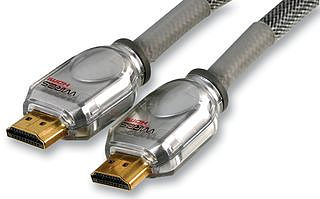 5 star award-winning Techlink HDMI Cables can now be purchased in lengths up to 50m, we tested the 50m HDMI cable using a Sky HD box connected to a Sony Bravia TV and the picture was perfect at the Sky HD maximum resolution of 1920 x 1080i. The long hdmi cables are part of the award-winning Techlink Wires CR range, the range includes almost every type of cable you could need for connecting your TV. The Techlink cables are available in lengths of 1m, 2m, 3m, 5m 10m, 15m, 20m, 30m and 50m.
Connecting a PC to TV
The best way to connect a PC to a TV depends on the connectors you have available, we will start by discussing older TVs that don’t have digital inputs such as HDMI or DVI. CRT TVs tend to have scart sockets as the primary connection, to connect a PC to a scart the PC or laptop must have a TV output connector, this will normally be a mini din connector with 4 or 7 pins. The image below shows a typical PC video card, the connector on the left is a DVI connector, the centre is the TV output connector and the connector on the right is the VGA connector.
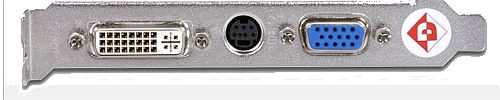
If you have a PC with the TV output connector you can connect this using an s-video cable and scart adapter into the TV scart. The s-video cable only has 4 pins but this is compatible with 7 pin s-video sockets on video cards. A couple of points to note, the TV output will only provide the picture and not sound and the scart you connect to on the TV must support s-video, if you connect to a scart that does not support s-video you will get a black and white picture. If your TV scart supports s-video you should be able to select it via the menus, it may also be referred to as Y/C.
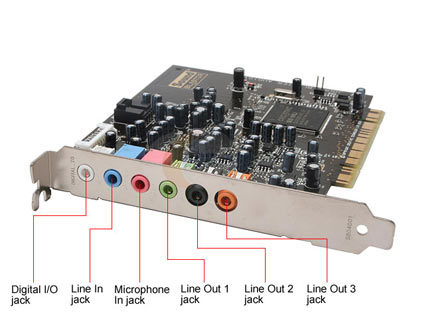
To get audio as well a connection is required from the PC sound card to the scart adapter red and white connectors, a typical soundcard is shown above, a connection is required from the green socket to the scart adapter using a 2x phono to 3.5mm jack cable. Once the connections are made you just need to enable the TV ouput in the video card driver settings and make sure the resolution is correct for the TV.
If your TV is an LCD or Plasma it will most likely have a VGA, DVI or HDMI connector. If both your TV and PC or laptop have HDMI connectors then a single HDMI cable is all that is required to connect it to the TV to give video and audio. If both have VGA or DVI then again a VGA cable or DVI Cable can be used but neither will give audio, you will need to make a separate audio connection with a 3.5mm jack to jack cable or 3.5mm jack to 2x phono cable. Other connection options include DVI to HDMI using a DVI to HDMI cable, this also requires a separate audio cable as DVI doesn’t support sound.
HDMI to DVI Cable – No Sound
An HDMI to DVI cable converts 19 pin HDMI to single link DVI-D, the cable is bi-directional so can convert from DVI to HDMI as well. A common issue with this cable is that it gives a picture but no sound, this is because the DVI connection normally only supports video as the name suggests, Digital Visual Interface. To get sound with an HDMI to DVI cable a separate audio cable is required. We say normally only supports video as there some exceptions, for example some PC video cards support DVI Audio and these will provide audio from the DVI connector which can be adapted to HDMI, in general though unless you are specifically using a DVI Audio enabled device you should assume you need a separate audio cable.
HDMI Matrix Switch
What is an HDMI Matrix switch?
It is an HDMI switch that allows 2 or more inputs to be connected to 2 or more outputs simultaneously, for example a 2 x 2 HDMI matrix switch has two inputs and two outputs, we could connect a blu ray DVD to input 1 and a Sky HD box to input 2, output 1 and output 2 would be connected to the displays, eg 2 plasmas or a plasma and a projector. With a matrix switch each output can connect to any input ie we could watch a blu ray DVD on display 1 and 2 or Sky HD on display 1 and blu ray on display 2 etc. A matrix can be configured to perform the same function as an HDMI splitter although they tend to cost more money.
HDMI Splitters
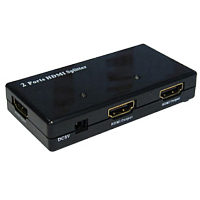
An HDMI splitter is a device that splits an HDMI signal to multiple displays, sometimes called an HDMI Distribution Amplifer. Suppose you wanted to watch Sky HD on 2 TVs, an HDMI splitter could be used to duplicate the input and give 2 identical outputs. The number of outputs provided is referred to as ports or ways, you may see the item described as a 2 port or 2 way if it has 2 outputs. A typical 2 port splitter shown below will cost around £40.
Displayport Cable becoming more popular
Despite being launched over 2 years ago displayport cables have struggled against the HDMI cable. Displayport has the advantage that there is no licensing required to use the connectors but manufacturers have been slow to adopt it. During recent months the displayport cable seems to have become more popular as manufacturers start to use the connection, big names such as Pioneer and Dell have started to ship products with display port connectivity.